Git Cheatsheet
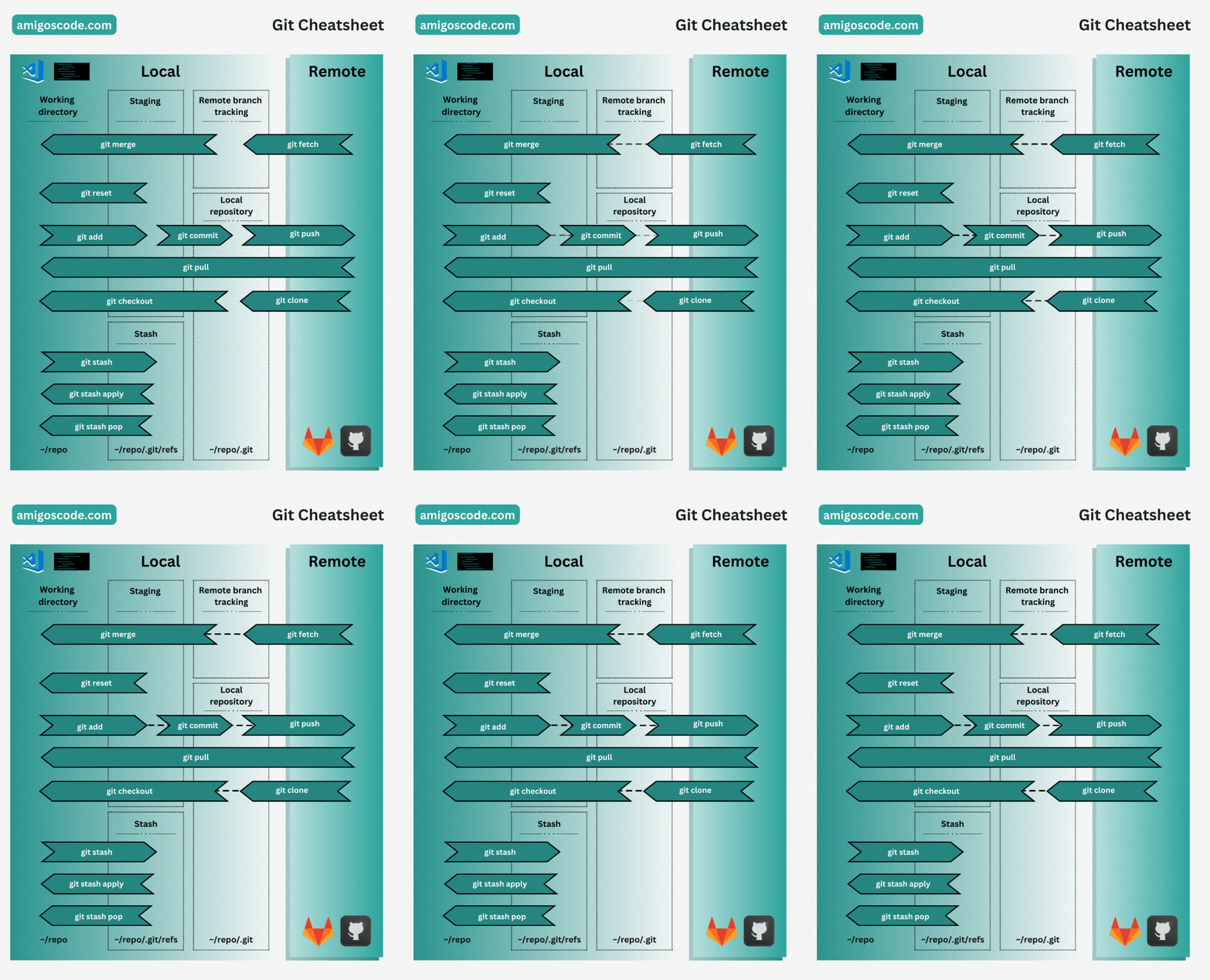
Here are the Git commands with explanations.
1. git merge: This command is used to integrate changes from one branch into another. For example, if you have a feature branch and you want to incorporate those changes into the main branch, you would use `git merge`. This is often done as part of a pull request on online Git platforms like GitHub or GitLab.
2. git fetch: This command fetches changes from a remote repository but does not merge them into your local branch. It's useful to see what changes others have made online without affecting your local branch.
3. git reset: `git reset` is used to reset your current branch to a specific commit. In an online context, it might be used to undo a commit before pushing it to a remote repository or to unstage changes before committing them.
4. git add: This command stages changes for the next commit. In an online context, you would use `git add` to prepare the changes you want to include in your next commit before pushing them to the remote repository.
5. git commit: After using `git add` to stage changes, you use `git commit` to record those changes as a new commit in your local repository. Once committed, you can push these changes to the remote repository.
6. git push: This command uploads your local commits to a remote repository, making them available for others to see and work with online. For example, after committing changes locally, you would use `git push` to share those changes with your team.
7. git pull: `git pull` fetches changes from a remote repository and merges them into your current branch. This is a common command to ensure your local branch is up to date with the online repository.
8. git clone: `git clone` is used to create a copy of a remote repository on your local machine. It's often the first step when you want to work on an existing online project locally.
9. git checkout: This command is used to switch between branches or commit states. In an online context, you might use `git checkout` to create and switch to a new branch for a new feature or bug fix.
10. git stash: `git stash` is used to temporarily save changes that you don't want to commit but also don't want to lose. In an online context, you might stash changes when you need to switch to a different branch or pull in changes from a remote repository.
11. git stash apply: After stashing changes, you can use `git stash apply` to reapply the changes to your current branch. This is useful when you want to bring back the stashed changes to continue working on them.
12. git stash pop: Similar to `git stash apply`, `git stash pop` reapplies the stashed changes to your current branch. However, it also removes the stash entry, so it's often used when you're confident that you won't need to apply the same stash again.
------------------------------------------------------------------------------------------------------------------------------------------------------------------------------------------------------------------------------------------------
Debug Tech - a leading software development company committed to providing innovative solutions to businesses of all sizes. We specialize in web application development, mobile application development, database design, windows application development, logo designing, and SEO services. Our team of expert developers is dedicated to delivering customized software solutions that are tailored to meet the unique needs of our clients.
At Debug Tech, we pride ourselves on our ability to deliver top-quality software solutions that are both efficient and effective. Our team of developers has years of experience working with a range of programming languages and technologies. We are passionate about using our technical expertise to solve complex problems and help businesses achieve their goals.
Website: https://debugtech.eu/
linkedin: https://www.linkedin.com/company/debugtecheu/
Instagram: https://www.instagram.com/debugtech
Facebook: https://www.facebook.com/debugtecheu
Youtube: https://www.youtube.com/@debugtecheu